Public Wi-Fi security: what to do?
Public Wi-Fi can expose your data to snoopers and attackers. Learn how to connect safely, what to avoid, and how to protect your privacy on any network.
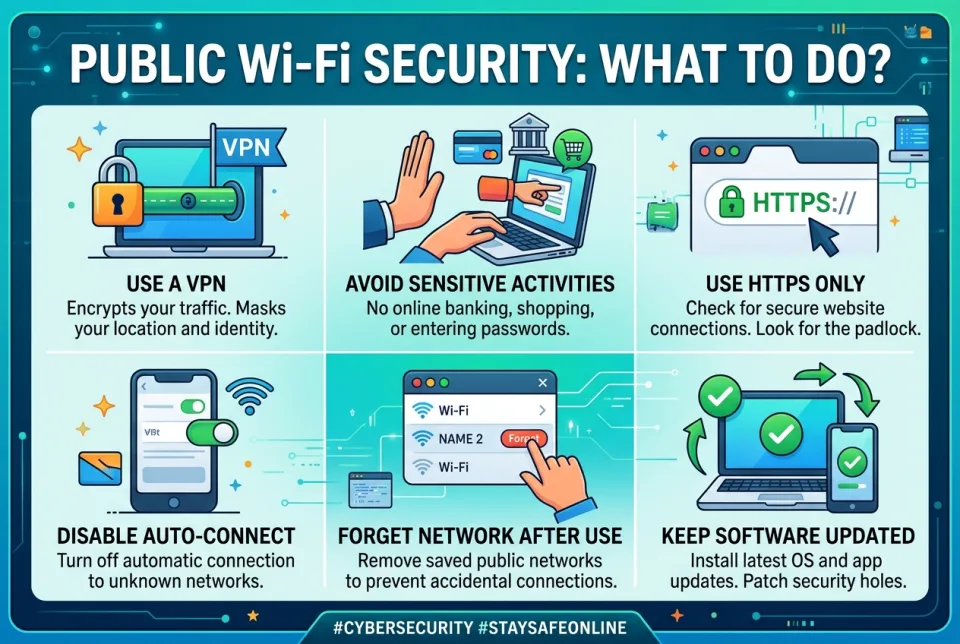
Quick answer
5 steps — read this before anything else
-
1
Avoid sensitive activities like banking or logging into email on public Wi-Fi.
-
2
Use a reputable VPN to encrypt your traffic.
-
3
Verify the network name with staff and prefer password-protected networks.
-
4
Turn off file sharing and auto-connect features.
-
5
Keep your device updated and use HTTPS websites.
Warning
Never access sensitive accounts like banking or email on an unsecured public Wi-Fi network without a VPN. If you suspect a compromise, disconnect immediately and change passwords from a secure connection.
Public Wi-Fi is convenient, but it comes with risks. Hackers can intercept unencrypted data, set up fake networks, or infect devices. While not every public network is dangerous, taking simple precautions can protect your personal information.
What is happening
When you connect to a public Wi-Fi network, your device communicates wirelessly with a router. If the network is unsecured, others on the same network may be able to monitor your traffic or trick you into connecting to a malicious hotspot. However, most modern websites use HTTPS encryption, which protects the content of your browsing. The main risks are unencrypted data, man-in-the-middle attacks, and malware distribution.
Emergency warning
If you suspect your accounts have been compromised or your device is infected, disconnect from the network immediately and change your passwords from a trusted connection. Contact your bank if financial information was exposed.
What to do first
- Verify the network name. Ask staff for the exact Wi-Fi name (SSID) to avoid connecting to a look-alike network set up by an attacker.
- Use a VPN. A virtual private network encrypts all your traffic, making it unreadable to others on the network. Choose a reputable VPN service.
- Turn off automatic connections. Disable auto-connect to open Wi-Fi and turn off file sharing (e.g., AirDrop, Windows file sharing) in your device settings.
- Stick to HTTPS. Look for the padlock icon in your browser and avoid sites that lack it. Consider using HTTPS Everywhere or browser settings that enforce secure connections.
- Avoid sensitive activities. Do not access banking, email, or social media accounts unless necessary. If you must, use the mobile app with cellular data instead.
What NOT to do
- Do not connect to open networks without a password unless you have no other option and are using a VPN.
- Do not ignore security warnings from your browser or operating system.
- Do not leave Bluetooth or file sharing on when not needed.
- Do not reuse passwords across accounts; use a password manager.
- Do not assume a password-protected network is safe; it may still be monitored.
When to seek professional help
If you notice unusual account activity, receive unexpected password reset emails, or suspect malware, run a security scan and consider consulting a cybersecurity professional. For identity theft, contact your local consumer protection agency.
What to monitor
- Check your bank and credit card statements regularly for unauthorized charges.
- Review login alerts from your accounts.
- Keep an eye on device performance for signs of malware.
How to prevent it
- Keep your operating system, browser, and apps updated.
- Use two-factor authentication on important accounts.
- Consider using your phone's mobile hotspot instead of public Wi-Fi.
- Log out of accounts when finished and clear your browser cache.
By following these steps, you can reduce the risks of public Wi-Fi and protect your personal data. Stay cautious and prioritize security over convenience.
This is general information and not a substitute for professional cybersecurity advice. In case of a security incident, contact a qualified professional.
Sources & references
Spotted an error? Report it — we correct factual mistakes promptly.
Read next
Bluetooth device refuses to pair: what to do?
When a Bluetooth device won't pair, the fix is usually simple. Follow these steps to get it connected.
Home security camera offline: what to do?
When your security camera goes offline, quick troubleshooting can restore it. Follow these steps to diagnose and fix common issues safely.
Printer shows offline: what to do?
A printer showing offline is usually a simple connection or power issue. Follow these steps to get it back online quickly.
Laptop stolen: what to do?
If your laptop is stolen, act quickly to protect your data and accounts. Here is a step-by-step guide to secure your information and report the theft.
Related handy tools
Checklists, decision guides, scenarios and quizzes for the same situation.