Bluetooth device refuses to pair: what to do?
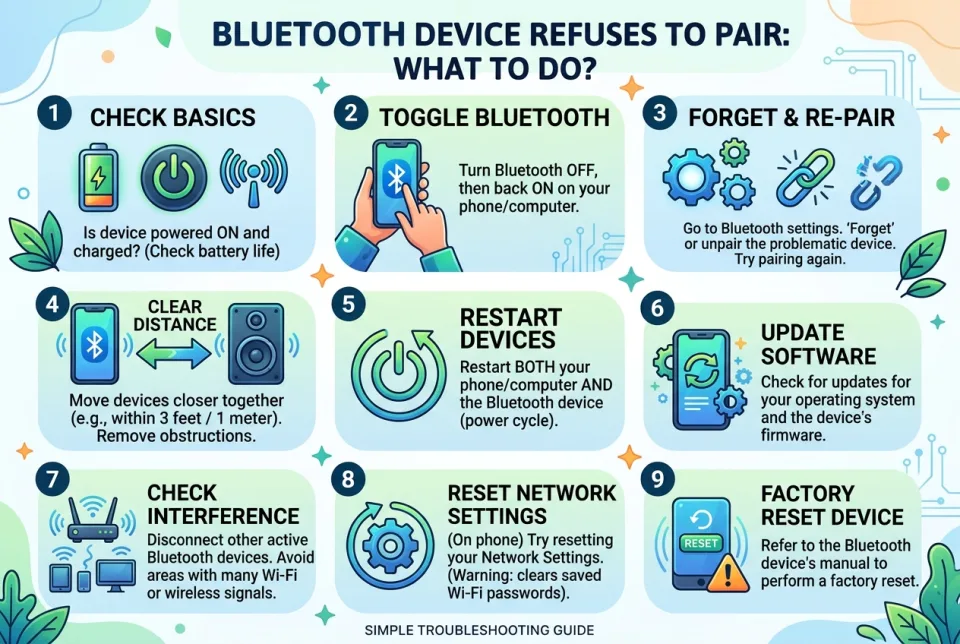
When a Bluetooth device won't pair, the fix is usually simple. Follow these steps to get it connected.
Quick answer
5 steps — read this before anything else
-
1
Toggle Bluetooth off and on for both devices.
-
2
Put the accessory in pairing mode (hold the button until the light flashes).
-
3
Remove old pairing records from your phone or computer.
-
4
Restart both devices.
-
5
Keep them within 1-2 meters during pairing.
Bluetooth pairing failures are common and usually easy to fix. The problem is typically caused by one device not being in pairing mode, interference, or outdated pairing records. Work through these steps methodically.
What is happening
Bluetooth devices need to be in 'pairing mode' to be discovered. Many accessories only enter this mode when you press and hold a button for several seconds, often indicated by a rapidly flashing LED. If the device is already paired to another phone or tablet, it may not appear in your list. Additionally, your phone or computer may have stored a corrupted pairing key from a previous attempt.
Step by step
- Check both devices are on and charged. A low battery can prevent pairing.
- Put the accessory in pairing mode. Press and hold the power or pairing button until the light flashes rapidly (check the manual for the exact pattern).
- Toggle Bluetooth on your phone or computer. Turn it off, wait 10 seconds, then turn it back on.
- Remove old pairing records. On your phone, go to Bluetooth settings, find the device in the list (if present), and select 'Forget' or 'Unpair'. On the accessory, if possible, perform a reset (often holding the button for 10-20 seconds).
- Restart both devices. Power cycle the accessory and restart your phone or computer.
- Keep them close. During pairing, keep the devices within 1-2 meters and away from USB 3.0 ports, Wi-Fi routers, and other wireless devices that can cause interference.
- Try pairing from the accessory side. Some devices initiate pairing when you press their button while your phone's Bluetooth settings screen is open.
What NOT to do
- Do not repeatedly tap the device name in the list; this can freeze the pairing process.
- Do not assume the accessory is in pairing mode just because it is turned on; many need a long press.
- Do not pair while the accessory is connected to another device (e.g., your laptop); disconnect it first.
- Do not use a damaged or non-approved charging cable during setup; some devices require stable power to enter pairing mode.
When to seek professional help
If you have tried these steps and the device still does not appear in the list, or if it appears but pairing fails with an error, the issue may be a hardware fault. Contact the manufacturer's support or visit an authorized service center. For computers, check for Bluetooth driver updates from the manufacturer's website.
What to monitor
After a successful pairing, test the connection by playing audio or transferring a small file. If the connection drops frequently, move the devices closer or remove sources of interference. Keep a note of any error messages for support.
Most pairing problems are resolved by resetting both devices and ensuring the accessory is in pairing mode. If not, professional assistance is recommended.
Spotted an error? Report it — we correct factual mistakes promptly.
Read next
Online order never arrived: what to do?
If your online order never arrives, act quickly: check tracking, contact the seller, and know your payment protections. Here is a step-by-step guide to get a refund or replacement.
Printer shows offline: what to do?
A printer showing offline is usually a simple connection or power issue. Follow these steps to get it back online quickly.
Laptop stolen: what to do?
If your laptop is stolen, act quickly to protect your data and accounts. Here is a step-by-step guide to secure your information and report the theft.
App keeps crashing on the phone: what to do?
A step-by-step guide to troubleshoot and fix an app that keeps crashing on your phone, from simple restarts to reinstalling the app.
Related handy tools
Checklists, decision guides, scenarios and quizzes for the same situation.