Password manager locked out: what to do?
If you are locked out of your password manager, stay calm and follow these steps to regain access or recover your data. Learn how to avoid permanent loss and protect your accounts.
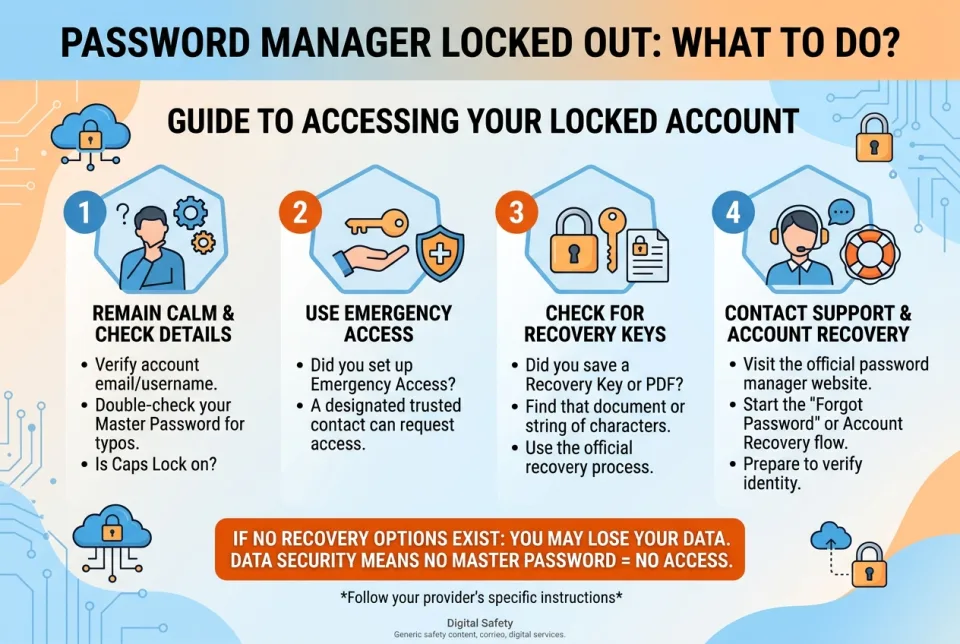
Quick answer
5 steps — read this before anything else
-
1
Check for typos and try alternate login methods (e.g., biometrics, PIN).
-
2
Use the official account recovery option (e.g., emergency kit, recovery code).
-
3
If recovery fails, contact the password manager's support with proof of purchase.
-
4
If you cannot regain access, change passwords for critical accounts and enable 2FA where possible.
-
5
Consider exporting data regularly and storing backups securely to prevent future lockouts.
Warning
Do not attempt to bypass encryption or use unofficial recovery services; they may compromise your security.
Being locked out of your password manager can feel like losing the keys to your digital life. Whether you forgot your master password, lost your 2FA device, or your account got locked after too many attempts, there are steps you can take to regain access or minimize damage. This guide walks you through what to do, what not to do, and how to prevent this situation in the future.
What is happening
Password managers encrypt your vault with a master password. If you cannot unlock it, you cannot access your stored passwords. Most services offer recovery options, but they vary. Some allow recovery via email, others require a recovery code or emergency kit. If you have not set up recovery, you may face permanent data loss. Understanding your service's policies is crucial.
Step by step: regaining access
- Double-check your input. Ensure caps lock is off, keyboard layout is correct, and you are using the right email. Try a different device or the web vault if available.
- Try alternative unlock methods. Many managers support biometrics (fingerprint, face) or a PIN. Use those if enabled.
- Use account recovery. Look for "Forgot password" or "Recover account" links. This may involve answering security questions, receiving a code via email, or using a recovery key you saved earlier.
- Check for an emergency kit. Some services provide a downloadable kit with a recovery code. Search your email or files for it.
- Contact support. If self-service fails, reach out to the password manager's official support. Provide proof of purchase (receipt, license key) and details about your account. Be wary of scams: only use official channels.
- If all else fails, start over. Create a new account if necessary. Then, systematically reset passwords for your most critical accounts (email, banking, social media) using the "forgot password" flow on each service. Enable two-factor authentication (2FA) wherever possible.
What NOT to do
- Do not repeatedly guess your master password; this may trigger a lockout or erase data after too many attempts.
- Do not share your master password or recovery codes with anyone, including support (legitimate support will never ask for them).
- Do not download unofficial "recovery tools" or pay third-party hackers; they are likely scams.
- Do not ignore the situation; the longer you wait, the harder recovery becomes.
When to seek professional help
If you have valuable data and recovery attempts fail, consider hiring a reputable digital forensics expert. However, be cautious: no one can guarantee recovery of encrypted data without the master password. For most users, resetting accounts is the safer and faster route.
How to prevent future lockouts
- Store your master password and recovery codes in a safe, offline place (e.g., a locked drawer or safe).
- Set up emergency access or a recovery kit if your manager offers it.
- Regularly export your vault to an encrypted backup and store it securely offline.
- Use a memorable but strong master password and consider a passphrase.
- Enable 2FA and keep backup codes for your 2FA method.
Stay calm and methodical. Most lockouts are recoverable with the right steps. If not, use it as an opportunity to strengthen your security practices.
This is general information and not a substitute for professional advice. For security incidents, consult a trusted IT professional.
Spotted an error? Report it — we correct factual mistakes promptly.
Read next
Phishing email clicked by mistake: what to do?
Clicking a phishing link can expose your accounts and device. Act quickly to limit damage and secure your information.
Laptop stolen: what to do?
If your laptop is stolen, act quickly to protect your data and accounts. Here is a step-by-step guide to secure your information and report the theft.
Ransomware screen appears: what to do?
A ransomware screen is a serious security incident. Stay calm, isolate the device, and follow these steps to limit damage and recover safely.
SIM card swapped without consent: what to do?
A SIM swap is a serious security breach that can give criminals access to your phone number and accounts. Act fast to limit the damage.
Related handy tools
Checklists, decision guides, scenarios and quizzes for the same situation.