Phishing email clicked by mistake: what to do?
Clicking a phishing link can expose your accounts and device. Act quickly to limit damage and secure your information.
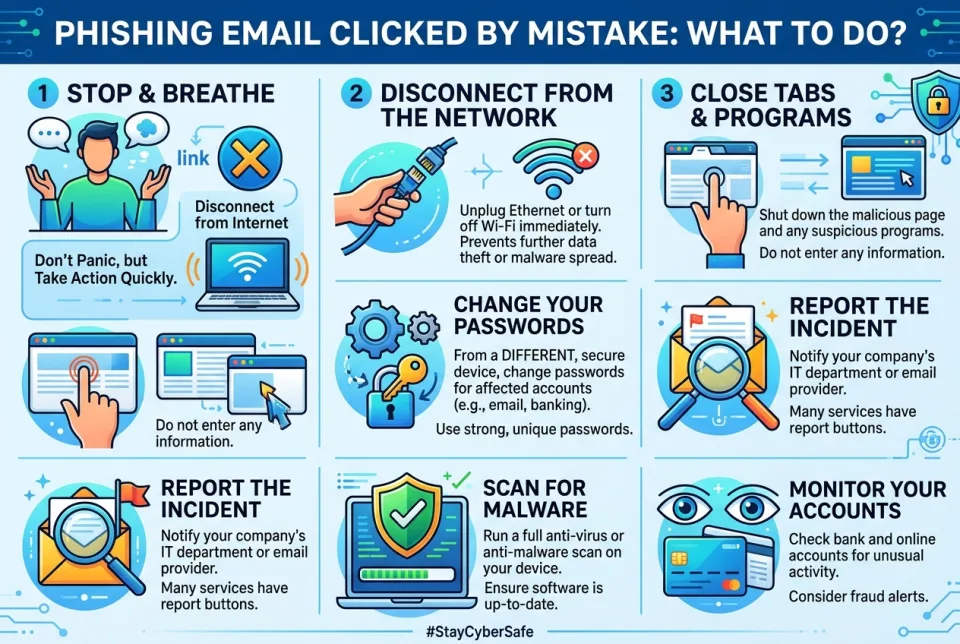
Quick answer
4 steps — read this before anything else
-
1
Disconnect your device from the internet if you entered credentials or downloaded an attachment.
-
2
Change passwords for any compromised accounts from a different device, and enable two-factor authentication.
-
3
Run a full antivirus scan and check for unusual activity.
-
4
Report the phishing email to your IT team or email provider, then delete it.
Warning
If you entered financial information, contact your bank immediately using a verified phone number. Do not use contact details from the suspicious email.
Clicking a link in a phishing email is a common mistake, but how you respond in the first few minutes can greatly reduce the risk. Phishing attacks often aim to steal login credentials, install malware, or trick you into revealing sensitive information. Stay calm and take these steps immediately.
What to do first
- Disconnect from the internet if you entered any passwords or downloaded an attachment. This helps prevent data from being sent to attackers and stops malware from communicating.
- Change passwords for any account you entered credentials into, and for any other accounts that use the same password. Do this from a different, trusted device. Use strong, unique passwords and a password manager.
- Enable two-factor authentication (2FA) on all important accounts, especially email, banking, and social media.
- Run a full antivirus scan on the device you used. If you downloaded an attachment, do not open it; delete it immediately.
- Report the email as phishing to your email provider or IT department, then delete it from your inbox.
What NOT to do
- Do not ignore the mistake and hope nothing happens. Early action is critical.
- Do not reuse the same password across multiple sites.
- Do not reply to the phishing email or click any more links in it.
- Do not provide any additional personal or financial information if prompted.
- Do not assume antivirus software alone will protect you; it may not detect all threats.
When to seek professional help
If you entered financial information (such as credit card details or bank login), contact your bank immediately using the phone number on your card or statement, not the number in the email. If you suspect malware infection (unusual pop-ups, slow performance, unknown programs), seek help from a trusted IT professional or your company's IT support. If you are an employee, report the incident to your IT security team right away, as they may need to take additional measures.
What to monitor
Keep an eye on your accounts for unusual activity, such as unexpected password reset emails, login alerts from unfamiliar locations, or unauthorized transactions. Check your sent items and account settings for changes you did not make. For several weeks, be extra cautious of follow-up phishing attempts that may reference the first email.
How to prevent it
- Hover over links to preview the actual URL before clicking. Look for misspellings or unusual domains.
- Be wary of urgent or threatening language, unexpected attachments, and requests for personal information.
- Use email filters and keep your software and antivirus up to date.
- Consider using a password manager, which can help you avoid entering credentials on fake sites.
Remember: a moment of caution can save hours of recovery. If you clicked, act fast, change passwords, and report the incident. Stay informed and share this advice with others.
Sources & references
Spotted an error? Report it — we correct factual mistakes promptly.
Read next
Printer shows offline: what to do?
A printer showing offline is usually a simple connection or power issue. Follow these steps to get it back online quickly.
Laptop stolen: what to do?
If your laptop is stolen, act quickly to protect your data and accounts. Here is a step-by-step guide to secure your information and report the theft.
App keeps crashing on the phone: what to do?
A step-by-step guide to troubleshoot and fix an app that keeps crashing on your phone, from simple restarts to reinstalling the app.
Suspicious charge on credit card: what to do?
A suspicious charge on your credit card can be alarming, but acting quickly can limit the damage. Here is a step-by-step guide to dispute it and protect your account.
Related handy tools
Checklists, decision guides, scenarios and quizzes for the same situation.