Deleted files by mistake: what to do?
Accidentally deleted a file? Stop using the drive immediately and follow these steps to maximize your chances of recovery.
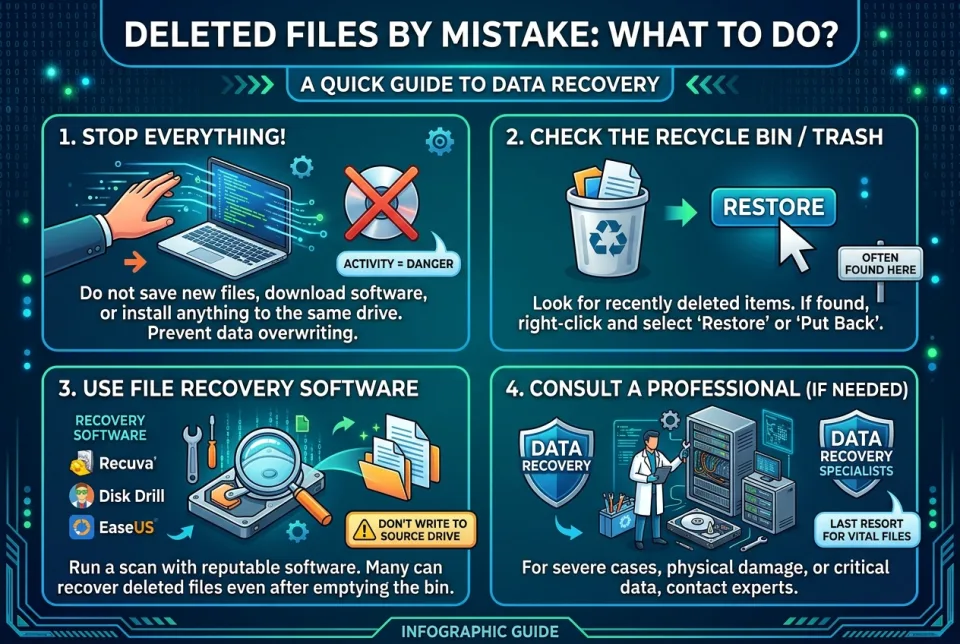
Quick answer
5 steps — read this before anything else
-
1
Stop using the device or drive where the file was stored to prevent overwriting.
-
2
Check the Recycle Bin (Windows) or Trash (Mac) and restore the file if present.
-
3
Look for backup copies in cloud services (OneDrive, Google Drive, iCloud) or local backups.
-
4
If the file is not found, use a reputable data recovery tool on a separate drive.
-
5
For critical files, consider professional data recovery services.
Warning
Do not save new files or install software on the drive where the file was deleted, as this can permanently overwrite the data.
Accidentally deleting a file is a common mistake, but the sooner you act, the better your chances of getting it back. When a file is deleted, the operating system typically marks the space as available but does not immediately erase the data. However, continuing to use the device can overwrite that space, making recovery impossible. Follow these steps to maximize your chances of recovery.
What to do first
- Stop using the device or drive immediately. Do not save new files, install software, or download anything to the same drive. If the deleted file was on an external drive or USB stick, unplug it.
- Check the Recycle Bin (Windows) or Trash (Mac). Open it and look for your file. If you find it, right-click (or Control-click on Mac) and select Restore (Windows) or Put Back (Mac).
- Look for backup copies. Check cloud storage services (OneDrive, Google Drive, Dropbox, iCloud Drive) and their trash or version history. Also check any local backups (File History on Windows, Time Machine on Mac, or a backup drive).
- Search your entire computer. Use the search function to look for the file name or part of it. Sometimes files are moved rather than deleted.
If the file is not in the Recycle Bin or Trash
If you cannot find the file in the usual places, you may need to use data recovery software. Important: do not install recovery software on the same drive where the file was deleted. Instead, install it on a different drive or use a portable version on a USB stick. Follow the software's instructions to scan the drive and recover the file. Save the recovered file to a different drive to avoid overwriting other lost data.
What NOT to do
- Do not continue using the drive. Any new data can overwrite the deleted file.
- Do not defragment or optimize the drive. This can permanently erase the file.
- Do not download or install software to the same drive. This includes recovery tools.
- Do not attempt recovery on a failing drive. If the drive is making strange noises or is not recognized, stop and seek professional help.
When to seek professional help
If the file is critically important and you are not comfortable using recovery software, or if the drive is physically damaged (e.g., clicking sounds, not spinning, not detected), consider a professional data recovery service. These services can be expensive, so weigh the cost against the value of the file.
How to prevent future loss
- Enable automatic backups. Use cloud sync or a local backup solution and verify that backups are working.
- Use version history. Many cloud services keep previous versions of files for a limited time.
- Be cautious with delete commands. Double-check before emptying the Recycle Bin or Trash, and consider using file recovery features built into some systems.
Act quickly and avoid writing to the affected drive. With luck and the right steps, you may recover your file. For critical data, always maintain regular backups.
Spotted an error? Report it — we correct factual mistakes promptly.
Read next
Phishing email clicked by mistake: what to do?
Clicking a phishing link can expose your accounts and device. Act quickly to limit damage and secure your information.
Laptop stolen: what to do?
If your laptop is stolen, act quickly to protect your data and accounts. Here is a step-by-step guide to secure your information and report the theft.
Suspicious charge on credit card: what to do?
A suspicious charge on your credit card can be alarming, but acting quickly can limit the damage. Here is a step-by-step guide to dispute it and protect your account.
Cloud backup failing silently: what to do?
When cloud backups stop working without warning, your data is at risk. Learn how to detect silent failures, fix common causes, and verify your backups are actually running.
Related handy tools
Checklists, decision guides, scenarios and quizzes for the same situation.