Computer suddenly running very slow: what to do?
A sudden slowdown can often be fixed with a few simple steps. Learn how to diagnose and resolve the issue without losing your data.
Quick answer
5 steps — read this before anything else
-
1
Save your work and restart your computer.
-
2
Check for high CPU or memory usage in Task Manager (Windows) or Activity Monitor (Mac).
-
3
Close unnecessary programs and browser tabs.
-
4
Run a malware scan with your security software.
-
5
If the problem persists, check for pending system updates and free up disk space.
If your computer suddenly becomes very slow, don't panic. Most slowdowns are caused by temporary software issues, resource-hogging programs, or pending updates. Follow these steps to identify and fix the problem.
What to do first
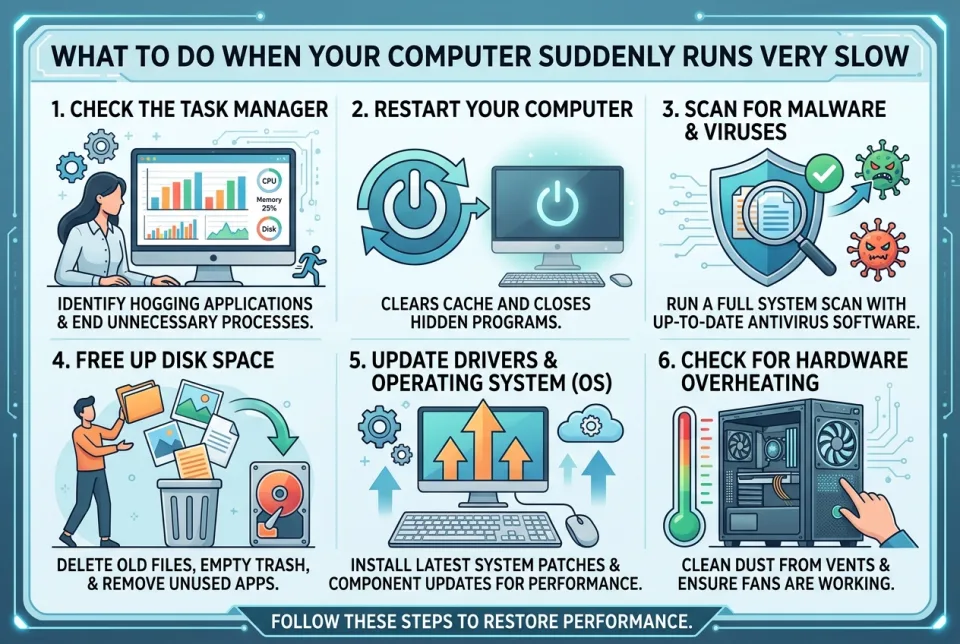
- Save your work and restart your computer. A simple reboot clears temporary files and stops stuck processes. This alone resolves many slowdowns.
- Check resource usage. On Windows, press Ctrl+Shift+Esc to open Task Manager and look at the Processes tab. On Mac, open Activity Monitor from Utilities. Sort by CPU or Memory to see which programs are using the most resources. If you see an unfamiliar program using a lot, note its name but don't end tasks randomly.
- Close unnecessary programs and browser tabs. Too many open tabs or background apps can exhaust memory. Close what you don't need.
- Run a malware scan. Use your built-in security tool (Windows Security or macOS XProtect) or a reputable antivirus. Malware often causes sudden slowdowns.
- Check for system updates. Install any pending operating system updates, as they may include performance fixes.
- Free up disk space. A nearly full hard drive slows everything down. Delete temporary files, empty the recycle bin, and uninstall unused programs.
What NOT to do
- Don't force shutdown by holding the power button unless the system is completely frozen. You could lose data or corrupt files.
- Don't download random "cleaner" or "optimizer" tools from the internet. Many are scams or contain malware.
- Don't disable security software to speed things up. That leaves you vulnerable.
- Don't ignore overheating. If the fan is constantly loud or the case is hot, the computer may be throttling due to heat.
When to seek professional help
If the slowdown persists after these steps, or if you see unusual behavior like frequent crashes, strange pop-ups, or files disappearing, it may be a hardware issue (failing hard drive, insufficient RAM) or a deeper malware infection. Contact a trusted technician or the manufacturer's support. Back up important files first if possible.
How to prevent future slowdowns
- Keep your operating system and software updated.
- Regularly back up important data.
- Use a reputable antivirus and avoid suspicious downloads.
- Keep at least 10-15% of your hard drive free.
- Restart your computer at least once a week.
By methodically checking these areas, you can often restore your computer's speed without expert help. If the problem continues, professional diagnosis is the safest next step.
Spotted an error? Report it — we correct factual mistakes promptly.
Read next
What to Do If Your Internet Is Suddenly Slow? 9 Ways to Find the Problem
When your internet slows down unexpectedly, a few simple checks can help you identify the cause and get back up to speed. Here are 9 practical steps to diagnose and fix the problem.
Printer shows offline: what to do?
A printer showing offline is usually a simple connection or power issue. Follow these steps to get it back online quickly.
Laptop stolen: what to do?
If your laptop is stolen, act quickly to protect your data and accounts. Here is a step-by-step guide to secure your information and report the theft.
Suspicious charge on credit card: what to do?
A suspicious charge on your credit card can be alarming, but acting quickly can limit the damage. Here is a step-by-step guide to dispute it and protect your account.
Related handy tools
Checklists, decision guides, scenarios and quizzes for the same situation.