Wi-Fi network slow or hijacked: what to do?
A slow or hijacked Wi-Fi network can be frustrating and risky. Learn how to diagnose the problem, secure your network, and protect your devices.
Quick answer
5 steps — read this before anything else
-
1
Run a speed test to confirm slow speeds.
-
2
Restart your router and modem.
-
3
Check for unknown devices on your network.
-
4
Change your Wi-Fi password and router admin credentials.
-
5
Update router firmware and enable WPA3 encryption.
Warning
If you suspect your network has been hijacked and you notice unauthorized financial transactions or identity theft, contact your bank and local authorities immediately.
If your Wi-Fi seems slow or you suspect it has been hijacked, don't panic. Most issues can be resolved with a few simple steps. This guide will help you identify the problem and secure your network.
What is happening?
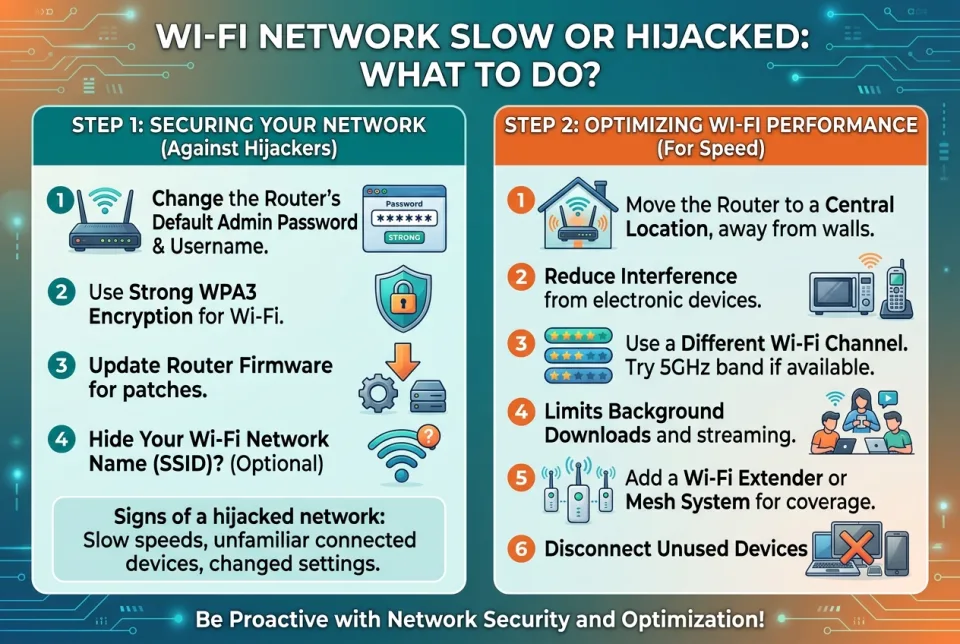
Slow Wi-Fi can be caused by interference, outdated equipment, or too many devices. A hijacked network means someone has gained unauthorized access, possibly to steal data or use your connection for illegal activities. Signs include unknown devices, changed settings, or sudden slowdowns.
What to do first
- Run a speed test on a device connected to Wi-Fi. Compare with your internet plan's advertised speed. If it's significantly lower, proceed.
- Restart your router and modem: unplug both, wait 30 seconds, plug back in. This clears temporary glitches.
- Check connected devices: log into your router's admin panel (usually at 192.168.1.1 or 192.168.0.1) and look for unfamiliar devices. If you see any, note their MAC addresses.
Step by step to secure your network
- Change your Wi-Fi password to a strong, unique one (at least 12 characters, mix of letters, numbers, symbols). Use WPA3 encryption if available; otherwise WPA2.
- Change your router's admin username and password. Default credentials are easy to guess.
- Update router firmware: check the admin panel for updates or visit the manufacturer's website.
- Disable remote management and WPS if you don't need them.
- Set up a guest network for visitors and smart devices to isolate them from your main network.
- Enable network encryption and a firewall on your router.
What NOT to do
- Do not ignore unknown devices; they could be attackers.
- Do not use easy-to-guess passwords like "password" or "12345678".
- Do not disable encryption or use WEP, which is easily cracked.
- Do not share your Wi-Fi password openly.
When to call for help
If you've tried these steps and still have issues, or if you suspect a serious security breach (e.g., unauthorized purchases, data theft), contact your internet service provider or a cybersecurity professional. If your personal data has been compromised, consider reporting to local authorities.
What to monitor
Keep an eye on your network speed and connected devices regularly. Use a network monitoring app or check your router's device list weekly. Also watch for unusual behavior like unexpected pop-ups or redirects, which could indicate malware.
How to prevent it
- Use a strong, unique Wi-Fi password and change it every few months.
- Keep router firmware updated.
- Use a firewall and antivirus software on your devices.
- Avoid connecting to public Wi-Fi without a VPN.
- Regularly review connected devices and remove unknown ones.
By following these steps, you can improve your Wi-Fi performance and protect your network from unauthorized access. Stay vigilant and keep your security up to date.
Spotted an error? Report it — we correct factual mistakes promptly.
Read next
What to Do If Your Wi-Fi Stops Working: 11 Troubleshooting Tricks to Get Back Online
A practical, step-by-step guide to diagnose and fix common Wi-Fi problems, from router reboots to channel changes and DNS checks, so you can get back online quickly.
What to Do If Your Internet Is Suddenly Slow? 9 Ways to Find the Problem
When your internet slows down unexpectedly, a few simple checks can help you identify the cause and get back up to speed. Here are 9 practical steps to diagnose and fix the problem.
Bluetooth device refuses to pair: what to do?
When a Bluetooth device won't pair, the fix is usually simple. Follow these steps to get it connected.
Online order never arrived: what to do?
If your online order never arrives, act quickly: check tracking, contact the seller, and know your payment protections. Here is a step-by-step guide to get a refund or replacement.
Related handy tools
Checklists, decision guides, scenarios and quizzes for the same situation.