Worried the smart speaker records everything: what to do?
Smart speakers only record after a wake word, but you can review and delete stored recordings, mute the microphone, and adjust privacy settings to reduce your exposure.
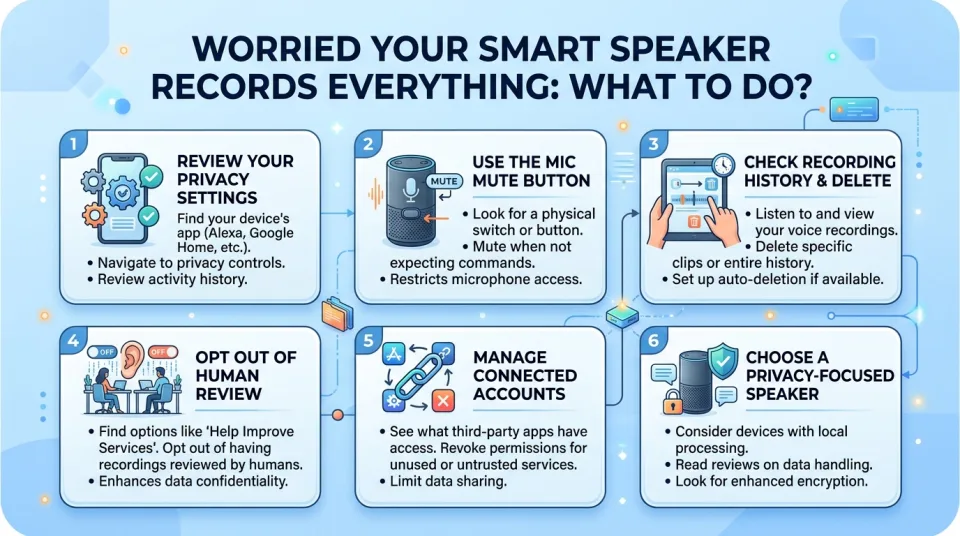
Quick answer
5 steps — read this before anything else
-
1
Review and delete stored voice recordings in the speaker's companion app.
-
2
Turn off voice recording history if you do not need it.
-
3
Use the physical microphone mute button when privacy is needed.
-
4
Check app permissions and limit third-party skills or actions.
-
5
Secure your Wi-Fi and enable two-factor authentication on your account.
If you are worried that your smart speaker is recording everything, start by understanding how these devices actually work. Most smart speakers are designed to listen only for a wake word (such as "Alexa," "Hey Google," or "Siri"). They do not continuously record or transmit audio unless triggered. However, accidental activations can happen, and voice recordings may be stored in your account. The good news is that you can take practical steps to review, delete, and limit what is kept.
What is happening
Smart speakers use a small buffer of audio to detect the wake word. When triggered, they send the command to the cloud for processing and may store a recording of the request. Some devices also store short clips before and after the wake word to improve accuracy. These recordings are associated with your account and can often be reviewed and deleted. The speaker is not typically recording all conversations, but it is always listening for the wake word unless the microphone is muted.
What to do first
- Open the companion app for your speaker (e.g., Amazon Alexa, Google Home, Apple Home) and sign in to your account.
- Find the voice history or recording history section. This is usually under Settings > Privacy or Account > History.
- Review recent recordings. Listen to or view the transcripts to see what has been captured.
- Delete individual recordings or all recordings. Most apps offer options to delete by date range or delete all.
- Turn off voice recording history if you do not want recordings stored. Look for options like "Disable voice recordings" or "Don't save voice recordings." Note that some features may not work as well without history.
Reduce accidental activations
- Use the physical microphone mute button when you want guaranteed privacy. This disables the microphone entirely, and the device will not respond to wake words.
- Adjust sensitivity if your speaker has a wake word sensitivity setting. Lowering it can reduce false triggers.
- Place the speaker away from TVs and noisy appliances that might sound like a wake word.
- Check for a "follow-up" mode that keeps the microphone open after a command; disable it if not needed.
Limit third-party access
Smart speakers often support third-party skills or actions that can access your data. Review connected accounts and permissions in the app. Remove any skills or services you do not use or trust. Also check if your speaker allows "drop-in" or "announce" features and disable them if they make you uncomfortable.
Secure your account and network
- Enable two-factor authentication on your speaker account to prevent unauthorized access.
- Use a strong, unique password for your account.
- Secure your Wi-Fi with a strong password and modern encryption (WPA2 or WPA3).
- Keep your speaker's firmware updated to receive security patches.
What NOT to do
- Do not assume the speaker is recording everything; verify by checking your voice history.
- Do not ignore account security; unauthorized access could expose your recordings.
- Do not share your account password with others.
- Do not rely solely on mute if you need absolute privacy; consider unplugging the device when not in use.
When to seek help
If you notice unexplained recordings, unauthorized account activity, or if the device behaves strangely (e.g., responds without a wake word), contact the manufacturer's support. If you suspect a security breach, change your password immediately and review account activity.
By taking these steps, you can better control what your smart speaker records and stores. Remember that this is general information and not a substitute for professional advice. For specific concerns, consult the manufacturer's privacy documentation.
Spotted an error? Report it — we correct factual mistakes promptly.
Read next
What Should I Do If I Lose My Phone?
Losing your phone is stressful, but quick action can protect your data and accounts. Follow these 9 steps to secure your device and personal information.
What to Do If Your Wi-Fi Stops Working: 11 Troubleshooting Tricks to Get Back Online
A practical, step-by-step guide to diagnose and fix common Wi-Fi problems, from router reboots to channel changes and DNS checks, so you can get back online quickly.
What to Do If Your Phone Screen Cracks, 7 Ways to Protect It Until You Get It Fixed
A cracked phone screen is fragile and dangerous to use. Learn immediate steps to stabilize the damage and 7 practical ways to protect it until you can get it repaired.
What Should I Do If My Apps Keep Crashing?
Apps that crash repeatedly are usually fixable with a few simple steps. Try these nine solutions in order, from quick restarts to reinstalling the app.
Related handy tools
Checklists, decision guides, scenarios and quizzes for the same situation.