What to Do If Your GPS Sends You the Wrong Way - 8 Navigation Tricks to Stay Safe
You're following the blue line. The voice says turn right. You turn right, and suddenly you're on a dirt road, or a one-way street heading the wrong direction, or a dead end in a neighborhood you've never seen. The phone recalculates like nothing happened.
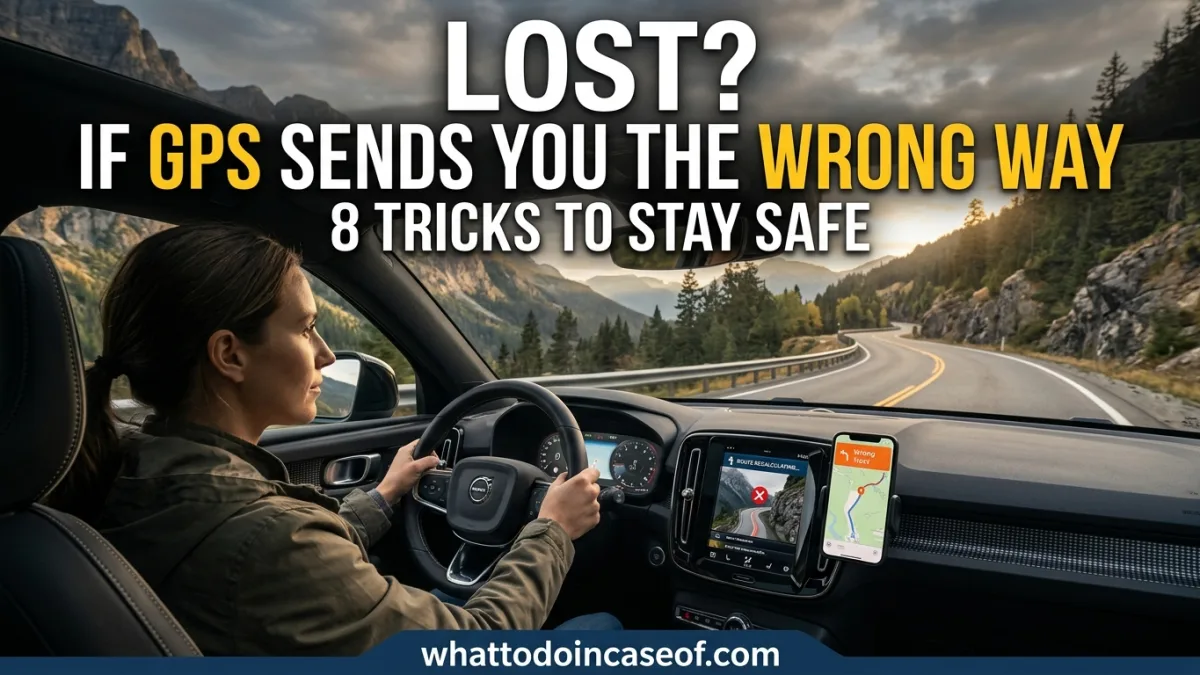
You're following the blue line. The voice says turn right. You turn right, and suddenly you're on a dirt road, or a one-way street heading the wrong direction, or a dead end in a neighborhood you've never seen. The phone recalculates like nothing happened.
It happens to almost everyone who drives, and it's getting more common as mapping apps lean harder on traffic data and shortcuts. The good news: a wrong turn is usually just annoying. The better news: a few habits keep it from becoming dangerous. Here's what's actually going on, and what to do about it.
The Problem: When the Map and the Road Disagree
Your GPS is a computer making its best guess about a world it can't see. It knows roughly where you are, roughly where the roads are, and what conditions were like the last time someone drove through. It doesn't know the bridge is out, the road floods after rain, or that the "shortcut" runs through a private logging gate.
Most of the time the guess is excellent. The trouble is the exceptions, and they tend to cluster in exactly the places where a mistake costs you: unfamiliar cities, mountain passes, rural areas with spotty signal, construction zones, and winter roads.
The most common mistake people make is simple. They keep driving because the app told them to. Trust in the screen overrides what their eyes are telling them, and by the time they admit something is wrong, they're deep into a bad situation.
Why Does My GPS Send Me the Wrong Way?
A few causes explain nearly every case.
Outdated map data. Roads change. New housing developments, closed exits, renamed streets, and permanent detours can take months to reach your app's map. If your map data is a year old, it's guessing.
Bad GPS signal. In cities, tall buildings bounce signals and create what's called an urban canyon effect. In mountains and dense forest, you may barely have a signal at all. When your phone loses its fix, it often keeps displaying a position that's a little or a lot wrong, and it will confidently navigate you from the wrong spot.
Traffic and routing quirks. Apps sometimes route you off a highway to save three minutes, straight into a residential maze or an unmaintained road. The algorithm optimized for time, not for "roads a normal car should use."
Faulty addresses. A single wrong digit, a missing apartment number, or a business with two locations can send you miles out of your way. This is especially common with new construction that isn't fully in the map database yet.
The app doesn't know the road conditions. Snow, flooding, seasonal closures, and weight-restricted bridges rarely show up in real time. The map shows a road. It doesn't show the road is under a foot of water.
8 Navigation Tricks That Keep You Safe
1. Look at the route before you drive it
Before you put the car in gear, zoom out and scan the whole route. Does it make sense? Does it stay on major roads? Does it cross water where there's no bridge? Thirty seconds of looking saves a lot of backtracking. If the route looks strange, trust your gut over the app.
2. Cross-check with a second source
When a route matters, check it against a second app or a paper map. They use different data, so when both agree, you're usually fine. When they disagree, that's your signal to slow down and think. This matters most on long drives and in areas you don't know. Our practical guides cover similar backup habits for other everyday plans that go sideways.
3. Download offline maps before you leave
Most major apps let you download a region for offline use. Do this before any trip into mountains, deserts, rural areas, or anywhere you expect weak signal. Offline maps aren't perfect, but they keep working when the signal drops, which is exactly when you need them most.
4. Watch the road, not the screen
Mount your phone so you can glance, not stare. The screen is a suggestion; the road is reality. If the app says turn but the road ahead looks like a driveway, believe the road. A three-point turn in a parking lot beats a tow truck in a ditch.
5. Keep a paper map or compass as backup
This sounds old-fashioned until your battery dies at night in an unfamiliar town. A cheap paper map of your region, or a basic compass in the glovebox, costs almost nothing and works when nothing else does. It's the same logic as keeping a flashlight and first aid kit: you hope you never need it.
6. Set "avoid" preferences before you go
Most apps let you avoid highways, tolls, ferries, or unpaved roads. If you're towing a trailer, driving a low-clearance car, or traveling with kids who get carsick on winding roads, set those preferences before you start. It's easier than fighting the reroute mid-trip. If you're traveling with family, the kids and family safety section has more on planning trips that go smoothly.
7. Stop safely before you troubleshoot
If you realize you're lost or the route is wrong, don't fiddle with the phone while driving. Pull over somewhere safe, a parking lot, a gas station, a wide shoulder if you truly have no choice. Then fix it. A minute stopped beats a crash from a two-second glance.
8. Know when to abandon the app entirely
Sometimes the app is wrong and won't admit it. Set a limit: if the reroute doesn't make sense after two attempts, turn it off and navigate by road signs or ask for directions. Pride costs less than a wrong turn into a sketchy area at night.
What's the Best Option for You?
There's no single answer, because it depends on where and how you drive.
If you mostly drive familiar city streets, trick 1 alone will handle nearly everything. Glance at the route, and you're fine.
If you road-trip into rural or mountainous areas, combine offline maps with a second app and a paper backup. That trio covers almost every failure mode.
If you drive for work, delivery, or ride-share, invest in two apps and a mount, and build a habit of checking addresses before you accept a route.
If you're traveling abroad, download offline maps and save the local emergency number before you go. Our emergency numbers by country page is a good place to grab that in one spot.
The honest truth: no app is reliable enough to follow blindly, so the best setup is the one that assumes the app will sometimes be wrong.
Step-by-Step Action Plan
- Before you drive, zoom out and check the whole route.
- Download offline maps for any area with weak signal.
- Cross-check the route with a second source for long or unfamiliar trips.
- Set your avoid preferences (tolls, highways, unpaved roads) up front.
- Mount your phone so you can glance without staring.
- If the route looks wrong, trust the road, not the screen.
- Pull over safely before troubleshooting or rerouting.
- If the app fails twice, switch to signs, a paper map, or ask for help.
- Save local emergency numbers before traveling somewhere new.
Common Mistakes to Avoid
Following the app into an obviously bad road. Fix: if it looks like a driveway, a flooded lane, or a private gate, stop and check.
Troubleshooting while driving. Fix: pull over first, always.
Trusting a single app. Fix: cross-check when the route matters.
Ignoring "no signal" zones. Fix: download offline maps before you leave.
Not updating your maps. Fix: update your app and map data regularly.
Typing the address once and never checking it. Fix: confirm the full address, including city and unit number, before you go.
Driving on when you're clearly lost. Fix: set a two-strike rule and switch to signs or asking for directions.
Expert Takeaway
The most important lesson is simple: your eyes beat your phone. A GPS is a helpful tool, not an authority, and the moment it tells you to do something that looks wrong, you're allowed to say no. Trust the road, keep a backup, and you'll rarely get truly lost.
This is general information, not a substitute for professional advice. If you're ever in danger, call your local emergency services.
FAQ
Why does my GPS keep sending me the wrong way?
Usually outdated map data, a weak signal, or an app routing you onto roads it thinks exist but that are closed, private, or impassable. It's almost never malice, just a computer guessing.
How do I stop Google Maps or Apple Maps from taking me on bad routes?
Zoom out and check the route first, set avoid preferences, and cross-check with a second app when it matters. No setting eliminates bad routes entirely.
What should I do if my GPS sends me into a dangerous area?
Don't stop in a place that feels unsafe. Keep moving if you can, get back to a main road, and reroute once you're somewhere well-lit and populated. If you feel threatened, call emergency services.
Can I use my phone's GPS without a signal?
Your phone can often still show your position using GPS satellites, but without a data connection it can't load new map data unless you've downloaded it. That's why offline maps matter.
Do I need a paper map anymore?
Not for everyday driving. But for remote trips, international travel, or anywhere your phone might die, a paper map or compass is cheap insurance. Browse more everyday safety habits in our practical-knowledge blog, and if you need a local expert for something like vehicle recovery, the trusted provider directory can help.
Written by
Basma IDBRAHIM
Travel & family enthusiast sharing practical tips, inspiring destinations, and ideas for making every journey and family moment memorable. ✈️👨👩👧👦
View profileSpotted an error? Report it — we correct mistakes promptly.
Keep reading
Related articles

10 AI Tools That Can Save You Hours Every Week
By the end of this guide, you’ll know exactly which AI tools are worth your time, what they actually do, and how to set them up in under 20 minutes. No fluff, no 50-tab research sessions — just ten picks that can genuinely claw back a few hours of your week.
What to Do If Your USB Drive Isn’t Recognized - 9 Troubleshooting Tips to Try
You plug the drive in. Nothing happens. No pop-up, no new letter in File Explorer, no icon on your desktop. Just silence, and a small knot of panic if that drive holds the only copy of something you need.

Can AI Replace Programmers? What Developers Need to Know
By the end of this guide, you’ll have a clear, practical answer to the "AI replace programmers" question — not a vague opinion, but a plan you can act on today. You’ll learn how to audit your own skills, spot where AI genuinely threatens your workflow, and build habits that make you more valuable a…
Related guides
Wi-Fi network slow or hijacked: what to do?
Wi-Fi network slow or hijacked: the right reflexes in a few simple steps.
Ransomware screen appears: what to do?
Ransomware screen appears: the right reflexes in a few simple steps.
Hot water tank burst: what to do?
Hot water tank burst: the right reflexes in a few simple steps.