What to Do If Your Bluetooth Won’t Connect
Your headphones are charged. Your phone says Bluetooth is on. And yet the two of them are pretending they've never met. You tap the device name, the little spinner turns, and then nothing. Or worse, it connects for four seconds and drops.
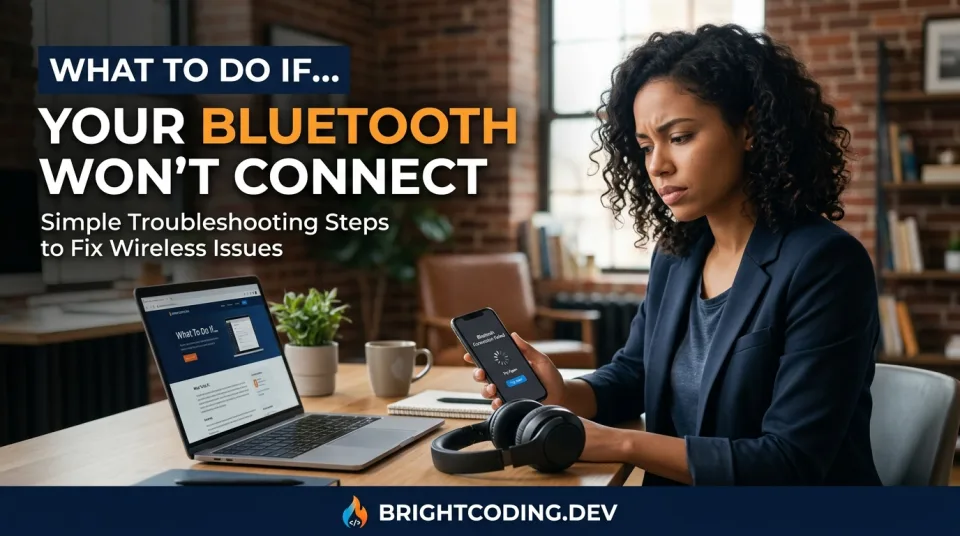
Your headphones are charged. Your phone says Bluetooth is on. And yet the two of them are pretending they've never met. You tap the device name, the little spinner turns, and then nothing. Or worse, it connects for four seconds and drops.
It's a small problem that eats a ridiculous amount of your day, especially when you're already late or the call has already started. The good news: Bluetooth failures are almost always boring. They come from a short list of causes, and most of them you can fix in under five minutes without reinstalling anything.
This guide walks through why Bluetooth won't connect, what to try first, and what to do when the usual tricks fail.
The Problem: It Worked Yesterday
Bluetooth is supposed to be invisible. When it stops working, it usually stops in one of a few recognizable ways:
- The device never shows up in the list at all.
- It shows up, you tap it, and the connection fails or times out.
- It pairs but there's no sound, no input, or no data.
- It connects and drops every minute or two.
Each of those points at a slightly different cause, which is why "just restart everything" sometimes works and sometimes doesn't.
The mistake most people make is jumping straight to the nuclear option: unpairing, forgetting the device, factory resetting the headphones. That wipes the pairing key that was probably fine, and now you have two problems. Start smaller.
Why Bluetooth Won't Connect
Bluetooth is a short-range radio link, and like any radio link it needs three things: both devices listening, a shared pairing record, and a clear enough channel. Break any one and the connection fails.
One device isn't actually in pairing mode. This is the most common cause by a wide margin. Headphones that were paired to your laptop yesterday are not automatically discoverable today. They're sitting there waiting for the laptop, not advertising themselves to the world.
The pairing record is stale or corrupted. Phones and earbuds store a shared key. Update one side's firmware, or restore the other from a backup, and the two keys no longer match. The devices see each other but can't complete the handshake.
Something is already connected. Many earbuds and speakers only accept one active connection. If your tablet grabbed them in the other room, your phone will fail to connect and give you no clue why.
Interference or distance. Bluetooth lives in the crowded 2.4 GHz band, alongside Wi-Fi, microwave ovens, and USB 3.0 ports. A phone in your back pocket with your body between it and the earbuds is a genuinely bad radio path.
Software state. Bluetooth stacks are fragile. A driver update, a low-power mode, or an OS update can leave the adapter in a half-broken state that only a proper restart clears.
Hardware failure. It happens. Batteries die, charging cases stop charging, and cheap adapters fail. If nothing else works, this is your remaining explanation.
The Solutions
1. Toggle Bluetooth off and on (properly)
Turning Bluetooth off in the quick settings menu and back on re-initializes the radio without touching your pairings. On Windows, use the Settings app or Action Center rather than a keyboard shortcut, which sometimes only toggles the UI. On Android and iOS, the control center toggle often just disconnects current devices without turning the radio off, so go into Settings instead.
Advantages: Takes ten seconds, breaks nothing. Disadvantages: Won't fix a stale pairing or a hardware fault. When it makes sense: Always try this first.
2. Put the device into pairing mode
Read the manual, or search "[your model] pairing mode." Most earbuds need you to hold the button for 5-15 seconds until a light blinks in a specific pattern. Some need the case open, some need them out of the case, some need both buds held at once.
Advantages: Fixes the majority of "it won't show up" cases. Disadvantages: Requires knowing the sequence. Cost: Free.
3. Disconnect the other device
If your earbuds are paired to a laptop, tablet, and phone, one of them may be holding the connection. Turn Bluetooth off on every other device that might have grabbed them, then try again. This is the single most underrated fix.
4. Forget and re-pair
Go into your phone or computer's Bluetooth settings, select the device, and choose "Forget" or "Remove." Then pair from scratch. This deletes the corrupted key and builds a new one. Do it on both sides if you can: some devices let you clear their own pairing memory with a long button hold.
Advantages: Fixes almost all pairing-record problems. Disadvantages: You lose any custom settings attached to that pairing. When it makes sense: After steps 1-3 fail.
5. Update firmware and OS
Check the manufacturer's app for earbud firmware updates, and check your phone or laptop for pending system updates. Bluetooth bugs get patched constantly; a fix for your exact symptom may already exist.
Advantages: Fixes root causes, not just symptoms. Disadvantages: Requires a working connection to download, in some cases. Cost: Free, though it eats time and battery.
6. Clear the interference
Move away from your router, microwave, and any USB 3.0 hub. Keep the phone on the same side of your body as the earbuds. If you're in a dense office or apartment building, the 2.4 GHz band may simply be saturated at certain times of day.
Advantages: Free and instant. Disadvantages: Not always possible. When it makes sense: If the connection works in one room and fails in another, this is your answer.
7. Try a different device entirely
Pair the headphones with a different phone, or pair a different Bluetooth device with your phone. This tells you which side is broken. If the headphones pair fine with a friend's phone, your phone is the problem. If they fail everywhere, the headphones are.
This is the single most useful diagnostic step, and almost nobody does it.
8. Reset the device and the adapter
Headphones and speakers usually have a factory reset (often a 10-20 second hold, or a specific button combination). Computers let you uninstall and reinstall the Bluetooth adapter in Device Manager on Windows, or reset the Bluetooth module on macOS by deleting the relevant preference file, though the exact method changes between versions, so check current instructions for your OS.
Advantages: Clears deep software states. Disadvantages: You lose all pairings; some resets wipe EQ or language settings too.
9. Replace the hardware
A USB Bluetooth adapter costs roughly $10-25 and can bypass a dead laptop radio entirely. Replacement earbuds cost whatever replacement earbuds cost. If a device fails to pair with three different hosts, it's done.
Which Fix Fits Your Situation
If the device never appears in the list, you're in pairing-mode territory. Check the manual first.
If it appears but won't connect, you're looking at a stale pairing or a competing device. Forget and re-pair, after making sure nothing else has grabbed it.
If it connects but drops constantly, think interference and distance before you think software. Physical problems look like software problems constantly.
If it worked fine until an update, and nothing else changed, roll with it: update the other side too, or wait for a patch. Sometimes the honest answer is that a vendor broke something and will fix it next week.
If nothing works on any device, stop troubleshooting and start shopping. You've eliminated software as a cause.
Step-by-Step Action Plan
Work through this in order. Don't skip ahead.
- Confirm the device is charged and powered on. Dead batteries mimic every other problem.
- Toggle Bluetooth off in Settings, not the quick toggle, then back on.
- Put the device into pairing mode using the manufacturer's instructions.
- Turn off Bluetooth on every other device that has ever paired with it.
- Try to connect. If it fails, forget the device on your phone or computer and pair again.
- Move away from routers, microwaves, and USB hubs, and keep devices on the same side of your body.
- Test the headphones with a different phone, and test your phone with different headphones. Note which side fails.
- Update firmware on both sides.
- Reset the headphones and, if needed, the Bluetooth adapter on your computer.
- If it still fails across multiple hosts, replace the faulty piece.
For situations where the tech problem is the smaller part of a bigger mess, our practical guides cover the what-to-do-next side of everyday problems, and the blog has more short fixes like this one.
Common Mistakes to Avoid
Factory resetting before trying a simple re-pair. Fix: always try "forget and re-pair" first; it's faster and less destructive.
Assuming the device is in pairing mode. Fix: check the manual. Blinking lights mean different things on different brands.
Leaving other devices connected. Fix: turn Bluetooth off on your laptop and tablet before connecting to your phone.
Testing in a crowded Wi-Fi environment and blaming the hardware. Fix: try the connection in a different room, or outside.
Ignoring firmware updates because the app is annoying. Fix: open it once a month, or when something breaks.
Buying a new device before testing the old one elsewhere. Fix: pair it with one other host. It takes two minutes and saves real money.
Troubleshooting while the phone is in a pocket and the earbuds are in the other room. Fix: keep them within a few meters, line of sight if possible, while you diagnose.
Expert Takeaway
Bluetooth problems are almost never mysterious. They are almost always one of four things: the device isn't discoverable, the pairing record is stale, something else has the connection, or the radio path is bad. Test each of those in order, and you'll solve it faster than you would by reading forum threads. If a device fails to pair with three different hosts, stop debugging and accept that it's broken.
FAQ
Why won't my Bluetooth device show up in the list?
It's almost certainly not in pairing mode. Most devices only advertise themselves for a minute or two after being put into pairing mode, and they won't be discoverable at all while connected to something else. Check the manual for the exact button sequence, and make sure nothing else is currently connected.
Why does my Bluetooth keep disconnecting?
Distance and interference are the usual suspects. Bodies, walls, and the 2.4 GHz congestion from Wi-Fi routers all weaken the signal. If it drops at a specific distance or in a specific room, it's physical. If it drops randomly everywhere, update firmware on both devices.
Should I forget the device or factory reset it?
Forget it first. Forgetting deletes the pairing record on your phone and forces a fresh handshake; factory resetting the headphones wipes everything and is a bigger hammer. Only reset the hardware if forgetting didn't help.
Why does Bluetooth work on my phone but not my laptop?
That points at your laptop's Bluetooth adapter or driver. Reinstall the adapter in Device Manager on Windows, or check for pending OS updates. A cheap USB Bluetooth dongle can also bypass a failing built-in radio entirely.
Does Bluetooth interfere with Wi-Fi?
Yes, both use the 2.4 GHz band, and they can slow each other down. Modern devices coordinate, but heavy Wi-Fi traffic in a small space still hurts Bluetooth range and stability. Switching your Wi-Fi to the 5 GHz band where possible often helps both.
This article covers general troubleshooting information. It isn't a substitute for manufacturer support or professional repair advice. For device-specific instructions, check your product's official documentation.
If you're dealing with a family tech setup and want broader safety and setup guidance, our kids and family safety section has related material. And if you need a local technician for a hardware fault, the trusted provider directory can point you toward one.
Written by
Mohamed IDBRAHIM
I oversee the platform's development, content strategy, quality standards, and overall user experience. My goal is to make WhatToDoInCaseOf.com a reliable and practical resource where people can quickly find clear, useful information about what to do when facing everyday problems, unexpected situations, important decisions, and life challenges. I work to ensure that the platform remains easy to use, accessible, informative, and continuously improved with helpful guides, tools, calculators, and practical resources. Through a focus on clarity, usefulness, and innovation, I am committed to building a platform that helps people better understand their options and take the next step with confidence.
View profileSpotted an error? Report it — we correct mistakes promptly.
Keep reading
Related articles
What to Do If Your USB Drive Isn’t Recognized - 9 Troubleshooting Tips to Try
You plug the drive in. Nothing happens. No pop-up, no new letter in File Explorer, no icon on your desktop. Just silence, and a small knot of panic if that drive holds the only copy of something you need.
What to Do If Your Phone Is Running Out of Storage
Your phone buzzes with that dreaded notification: "Storage Almost Full." Suddenly you can't take a photo of your kid's school play, your apps crash, and your phone feels like it's wading through mud. You're not alone, and you're not doomed to delete everything you love.
What to Do If Your Child Spends Too Much Time on Screens
Your nine-year-old has been on the tablet since breakfast. You've asked three times for it back. You're tired, you feel like the bad guy
Related guides
Stolen personal data: what to do?
Stolen personal data: the right reflexes in a few simple steps so you can react without panicking.
My email account is sending spam: what to do?
My email account is sending spam: the right reflexes in a few simple steps.
Card theft in the souk: what to do?
Card theft in the souk: the right reflexes in a few simple steps.